VSC x VIM - 反正多学几个快捷键没有坏处
目录
2024.08 Update
一年过去了, 我的感想是: MD, 我以前没有VIM是怎么活过来的!!!
2023.04 Update
硬是压着自己使用了两个月, 现在我的效率又提高了一级
推荐使用的几个VIM插件:
- Easy-Motion
- Vim-Surround
- Vim-Sneak(optional)
- vim-indent-object(optional, 但是有时候挺有用)
2023.02 Update
距离这一篇文章的第二次更新已经过去了半年, 这段时间我不断地尝试 VIM, 期间也不断放弃和重试, 终于在 2023 年的今天, 我成功用 VIM 代替 IDE 的普通编辑模式
用于开发最好的组合是 VSC + VIM, VSC 弥补了 VIM 的不足(比如其他的一些选择快捷键, 代码提示, Hover, Reference 查看等等), VIM 却从效率上提升了 VSC 的编辑体验
前言
这篇文章编辑自 2016 年的一篇文章.
当年研究过一段时间 VIM, 因为操作不熟练没有用作主力 IDE, 而是单纯在 CLI 里面用于轻度编辑
多年过去了, VSC 成为了主力 IDE, VSC 的 VIM 插件也变得更好用了
我使用 VSC 的快捷键已经可以达到很高的操作速度, 不过多学几个快捷键没什么坏处
VSC VIM 插件
首先需要安装 VSC 的 VIM 插件
模拟 VSC 的基础功能
gd: VSC 类似Ctrl+点击, 查看所选内容的引用gh: 类似于鼠标 hoveraf- visua mode command which selects increasingly large blocks of text. For example, if you had “blah (foo [bar ‘ba|z’])” then it would select ‘baz’ first. If you pressed af again, it’d then select [bar ‘baz’], and if you did it a third time it would select “(foo [bar ‘baz’])”.gt/gT: 正向反向跳转文件标签页, VSC 自身也有快捷键这个可以选择性使用2gt: 这个其实是激活第二个标签页, 注意不是跳两次
vim-easymotion
这个插件的目的是为了方便使用 motion 命令快速跳转
Based on vim-easymotion and configured through the following settings:
需要进行一些配置:
  "vim.leader": "<space>", // 关键快捷键
  "vim.easymotion": true, // 开启功能
如上配置之后可以通过 <space><space>w{char} 快速跳转到包含特定字母的字符的开头
Hotkeys
| Motion Command | Description |
|---|---|
<leader><leader> s <char> | Search character 搜索单个字母 |
<leader><leader> f <char> | Find character forwards 向后搜索单个字母, 建议使用 <leader><leader> s <char> 代替 |
<leader><leader> F <char> | Find character backwards 向前搜索单个字母, 建议使用 <leader><leader> s <char> 代 |
<leader><leader> t <char> | Til character forwards |
<leader><leader> T <char> | Til character backwards |
<leader><leader> w | Start of word forwards 向后搜索单词头 |
<leader><leader> b | Start of word backwards 向前搜索词头 |
<leader><leader> l | Matches beginning & ending of word, camelCase, after _, and after # forwards 向后搜索单词词首或者词尾, 单词数量少的情况下 <leader><leader> w |
<leader><leader> h | Matches beginning & ending of word, camelCase, after _, and after # backwards 向前搜索单词词首或者词尾, 单词数量少的情况下 <leader><leader> w |
<leader><leader> e | End of word forwards |
<leader><leader> ge | End of word backwards |
<leader><leader> j | Start of line forwards |
<leader><leader> k | Start of line backwards |
<leader><leader> / <char>... <CR> | Search n-character |
<leader><leader><leader> bdt | Til character |
<leader><leader><leader> bdw | Start of word |
<leader><leader><leader> bde | End of word |
<leader><leader><leader> bdjk | Start of line |
<leader><leader><leader> j | JumpToAnywhere motion; default behavior matches beginning & ending of word, camelCase, after _ and after # |
<leader><leader> (2s|2f|2F|2t|2T) <char><char> and <leader><leader><leader> bd2t <char>char> are also available.
The difference is character count required for search.
For example, <leader><leader> 2s <char><char> requires two characters, and search by two characters.
This mapping is not a standard mapping, so it is recommended to use your custom mapping.
Usage
- 首先是最简单的用法:
<leader><leader> s <char>搜索单个字母- 例如:
<leader><leader> s a搜索所有的 a 字母 - 匹配的数量可能会很多, 导致跳转的时候可能需要多按两次
- 例如:
<leader><leader> / <char>... <CR>搜索多个字母
- 例如:
<leader><leader> / abc <CR>搜索所有的 abc 字符串 - 由于匹配了多个字母, 所以跳转的时候需要按的次数会少很多
- 但是需要额外按下回车也很麻烦
<leader><leader> j搜索所有的行首
- 多数情况下选择多行时会用到,
V <leader><leader> j就可以选中当前行和目标行
Personal Mapping
{
	"before": ["J"], // 将 Shift+J 设置成 Easymotion 的
	"after": ["<leader>", "<leader>", "/"]
},

// 或者你也可以绑定到 f 按键上, 因为我一直觉得 f 的查找效率不高, 而且绑定到 f 上也不会影响到原来的功能
{
  "before": [ "f", ],
  "after": [ "<leader>", "<leader>", "/" ]
},
vim-surround
Based on surround.vim, the plugin is used to work with surrounding characters like parentheses, brackets, quotes, and XML tags.
| Setting | Description | Type | Default Value |
|---|---|---|---|
| vim.surround | Enable/disable vim-surround | Boolean | true |
t or < as <desired> or <existing> will enter tag entry mode. Using <CR> instead of > to finish changing a tag will preserve any existing attributes.
| Surround Command | Description |
|---|---|
S <desired> | Surround when in visual modes (surrounds full selection) 需要预先选中内容 |
y s <motion> <desired> | Add desired surround around text defined by <motion> 经常误操作, 建议选中后使用 S <desired> 代替此操作 |
d s <existing> | Delete existing surround 删除包裹的符号, 不需要选中, 直接查找最近的符号 |
c s <existing> <desired> | Change existing surround to desired 替换包裹的符号, 不需要选中, 直接查找最近的符号 |
Some examples:
"test"with cursor inside quotes typecs"'to end up with'test'"test"with cursor inside quotes typeds"to end up withtest"test"with cursor inside quotes typecs"tand enter123>to end up with<123>test</123>
vim-sneak
Based on vim-sneak, it allows for jumping to any location specified by two characters.
另一种跳转工具, 实现搜索两个首字母方便跳转, 缺点在于需要输入两个字母, 如果单词较长, 会比较麻烦
| Setting | Description | Type | Default Value |
|---|---|---|---|
| vim.sneak | Enable/disable vim-sneak | Boolean | false |
| vim.sneakUseIgnorecaseAndSmartcase | Respect vim.ignorecase and vim.smartcase while sneaking | Boolean | false |
Once sneak is active, initiate motions using the following commands. For operators sneak uses z instead of s because s is already taken by the surround plugin.
| Motion Command | Description |
|---|---|
s<char><char> | Move forward to the first occurrence of <char><char> 核心在于搜索两个首字母 |
S<char><char> | Move backward to the first occurrence of <char><char> |
<operator>z<char><char> | Perform <operator> forward to the first occurrence of <char><char> |
VSCode 文件配置
  "vim.leader": "<space>",
  "vim.easymotion": true,
  "vim.surround": true,
  "vim.useSystemClipboard": true,
  "vim.sneak": true,
  "vim.sneakUseIgnorecaseAndSmartcase": true,
  "vim.autoSwitchInputMethod.enable": true,
  "vim.autoSwitchInputMethod.defaultIM": "1033",
  "vim.autoSwitchInputMethod.obtainIMCmd": "D:\\Tools_For_Work\\im-select\\im-select.exe",
  "vim.autoSwitchInputMethod.switchIMCmd": "D:\\Tools_For_Work\\im-select\\im-select.exe {im}",
  "vim.handleKeys": {
    "<C-d>": false,
    "<C-b>": false,
    "<C-h>": false,
    "<C-f>": false,
    "<C-a>": false,
    "<C-x>": false,
    "<C-w>": false,
    "<C-s>": false,
    "<C-c>": false,
    "<C-v>": false,
    "<C-z>": false,
    "<C-e>": false,
    "<C-n>": false,
    "<C-t>": false
  },
  "vim.normalModeKeyBindingsNonRecursive": [
    // {"before": ["<leader>", "g"], "after": ["<cmd>", "Rg", " "]},
    {"before": ["f"], "after": ["<leader>", "<leader>", "/"]},
    {"before": ["x"], "after": ["\"", "_", "x"]},
    {"before": ["X"], "after": ["\"", "_", "X"]},
    {"before": ["d", "d"], "after": ["\"", "_", "d", "d"]}
  ],
  "vim.normalModeKeyBindings": [
    {"before":["H"], "after":["^", "a"]},
    {"before":["K"], "after":["g", "T"]},
    {"before":["J"], "after":["g", "t"]},
    {"before":["H"], "after":["^", "i"]},
    {"before":["L"], "after":["g", "_"]}
  ]
Vim - 基础
编辑模式
- 普通模式下按下
i进入插入模式- 使用
i将光标定位到选择内容前方 - 使用
a将光标定位到选择内容后方
- 使用
- 插入模式下按下
Esc 或者 Ctrl+[回到普通模式
- 如果不确认在哪个模式就按两下
Esc回到普通模式
Command Cheatsheet
- 移动 (motion)
- 按照单词移动
w: 跳到下一个单词的开头b: 跳到当前单词或者上一个单词的开头e: 跳到当前单词或者下一个单词的结尾ge: 调到上一个单词的结果
- 行按照行移动j
0: 数字 0, 跳到行首的任何字符$: 跳到行尾的任何字符^: 跳到行首的非空字符g_: 跳到行尾的非空字符gg: 跳到文件第一行的行首非空字符G: 跳到文件最后一行的行首非空字符
- 字符查找
f{char}: 跳转到行内下一个 {char} 位置F{char}: 跳转到行内上一个 {char} 位置t{char}: 跳转到行内下一个 {char} 前, 比f{char}少取一个字符T{char}: 跳转到行内上一个 {char} 后, 同样少取一个字符
- 翻页 (注意这里几个快捷键可能和 VSC 的快捷键会冲突, 修改
vim.handleKeys可以防止冲突 )Ctrl+f/b: 向前/向后移动一页Ctrl+d/u: 向前/向后移动半页
- 按照单词移动
- 重复
;/,: 正向/反向重复行内查找./u: 正向/反向重复文本改变n/N: 正向/反向重复全文查找&/u: 正向/反向重复替换@{marco}/u: 正向/反向执行宏
- 动作 (action)
i: 选中范围内(Inner),vi(会选括号内的内容a: 选中范围(Around),va(会连括号一起选中d: 删除(同时会复制)c: 修改(同时进入插入模式)y: 复制v: 进入 VISUAL 模式
- 混合使用
dd: 删除一行cc: 删除一行并从非空位置开始输入yy: 复制一行2yy: 复制三行di(/dib: 删除小括号内的内容da(/dab: 删除小括号以及里面的内容di{/diB: 删除大括号内的内容ci<: 快速修改尖括号里面的内容dfa: 从当前开始删除到下一个字母 aya`: 快速复制 backtick 符号以及里面的内容d$: 从当前一直删除到结尾d^: 从当前一直删除到开头die: 删除整个文件dit: 删除一个 Tag 里面的内容, 适合 XML 文件dat: 删除一个 Tag 全部
- 宏的录制
q{char}: 录制一个宏命令并保存到{char}-q: 输入完毕后停止录制, 可能不会有什么反应但是会停止录制 -@{char}: 执行录制的名称为{char}的宏 -:register {char}: 查看已经录制的宏的细节 -qaq: 清楚所有宏
普通模式
{char}指任何可输入字符<CR>指Enter按键<C-{char}>指按住Ctrl然后按下{char}对应的按钮
简单命令
| 命令码 | 含义 | Comment |
|---|---|---|
h j k l | 光标左,下,上,右 | |
x | 删除一个字符 | |
y | 复制 | |
. | 重复上次编辑行为,重复命令码之前执行的所有编辑行为 | 圆点符号 |
u | 撤销 | |
> | 增加缩进 | |
w | 正向移动到下一单词的开头 | 改为大写按钮后则不按照单词移动,按照字串移动 |
b | 反向移动到上一单词的开头 | 改为大写按钮后则不按照单词移动,按照字串移动 |
e | 正向移动到下一单词的结尾 | 改为大写按钮后则不按照单词移动,按照字串移动 |
c | 修改 | 从当前字符修改至单词末尾: cw修改整个单词: caw |
d | 删除光标所在整个单词 | 删除整个单词: daw删除整个段落: dap |
<C-a> | 对选中的数字进行加 1 对选中的数字进行减一 | 对负数也有效 |
f{char} | 在行内查找下一指定字符 | 继续查找下一个: ;继续查找上一个: , |
/pattern<CR> | 在文档中查找下一处匹配项 | 继续查找下一个: n继续查找上一个: N |
?pattern<CR> | 在文档中查找上一处匹配项 | 同上 |
:s/target/replacement | 替换 | 继续替换下一个: &回退: u替换特定行范围内的文字: {num},{num}s/old/new/ |
$ | 行尾 | 单独使用可以跳到行尾,也可配合其他命令使用 |
r | 替换 | 可以替换单个字符,如果选中多个字符则会换为相同长度的重复单个字符 |
% | 跳转括号 | 跳转到对应括号的字符处 |
a | 在光标之后插入文本 | 在行末插入文本: A |
:wq | 保存并退出 | 前方加上! 可以强制执行 |
:q | 不保存并退出 | 前方加上! 可以强制执行 |
:{number} | 直接跳转特定行号 | |
0 | 无脑移动到行首 | |
^ | 移动到本行第一个非blank的位置 | |
$ | 无脑移动到行尾 | 注意这里和 ^ 并不是完全相反的功能 |
g_ | 移动到本行最后一个非blank的位置 | 注意是 g 后面带上一个下划线 |
o O | 在当前行的前或后重新创建一行开始输入并进入编辑模式 | 这里是大小写的字母 O |
I A | 在当前行的行首或行尾开始输入并进入编辑模式 |
附一张 VIM 键位图1:
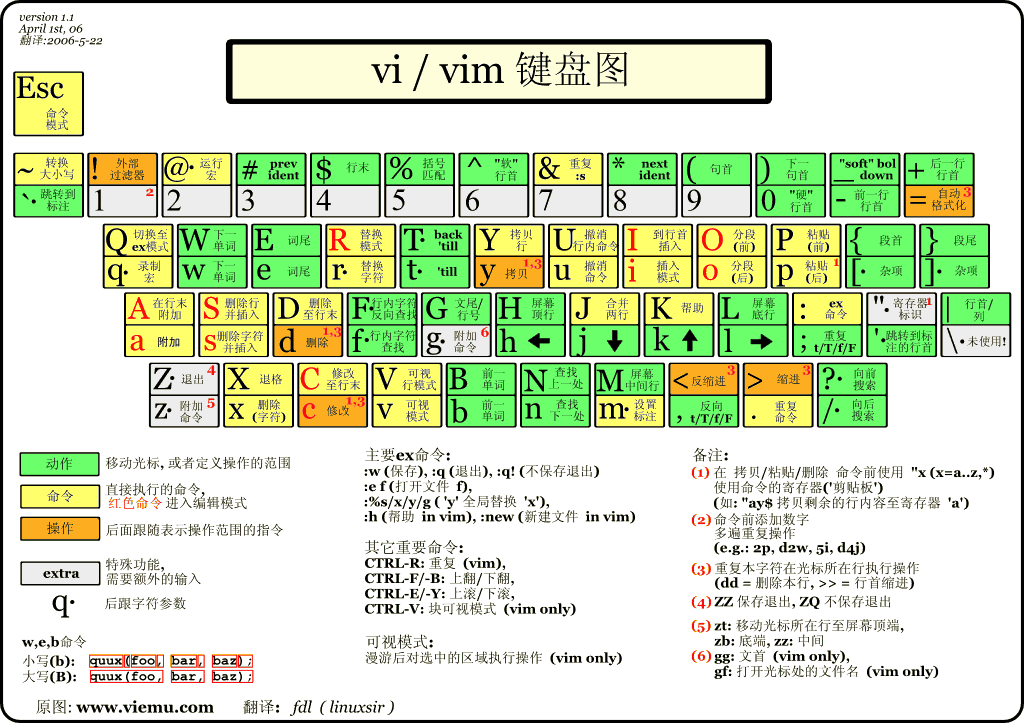
Example
快速选取 1
例如下面这样的文字:
| aaa| vaaaa<br>aaaa<br>bbbb |如果我们要修改出左边的aaa,则可以直接双击然后修改
而若要修改右边的一团 vaaaa<br>aaaa<br>bbbb,只需要几个按键:vt|
v代表开始选择t代表直到某个特定字符|就代表竖线字符
如此可以快速的选中右边的一团,最重要的是不需要操作鼠标
如果有多个这样格式的一团需要进行批量选中修改,那么VIM可以节省很多时间
快速选取 2
[^2]: [http://www.vimer.cny](http://www.vimer.cn)例如需要选取大括号内的数据,只需要输入vi[ 即可快速选中括号内所有数据,而不用移动鼠标来进行选取
如果选取是为了修改则可以直接输ci[
宏
之前就听说 Marco Recording 是个很 6 的功能,这次正好来体验一下2
比如有 100 个这样的 item,要从中筛选出 30 个,如果用普通方法我们需要选中每个 item,然后删除,如果使用普通vim,我们可以使用5dd来删除每个 item,但是需要定位到 item 开头的cards标签才能执行,这时候macro是个很不错的 Solution
	cards
		cardNamecardName
		cardDesc-cardDesc
		cardType7cardType
	cards
	cards
		cardNamecardName
		cardDesc-cardDesc
		cardType7cardType
	cards
	cards
		cardNamecardName
		cardDesc-cardDesc
		cardType7cardType
	cards
宏相关命令
| 命令码 | 含义 | Comment |
|---|---|---|
q{char} | 录制宏并保存到{char}这个变量中 | |
q | 停止录制 | |
「{char}p | 显示{char}变量里录制好的命令细节,会输出到光标所在位置 | |
{num}@{char} | 执行{char}里面录制的宏命令 |
这时候只需要以下几步
qa: 开始录制宏并保存到变量a中?cards{Enter}: 跳转到前一个 cards 的位置并取消选择5ddq: 删除 5 行并停止录制
然后如果想要删除特定 item 就只需要输入@a来调用变量a里面保存的宏命令